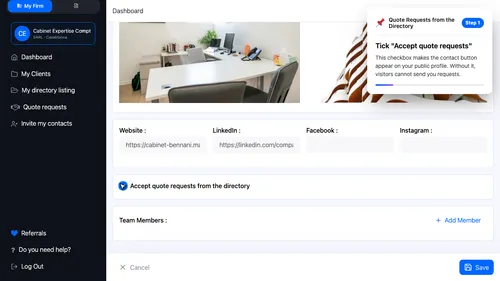
1 Enable incoming requests Tick "Accept quote requests". This checkbox makes the contact button appear on your public profile. Without it, visitors cannot send you requests. ▾ ▶ 0:11
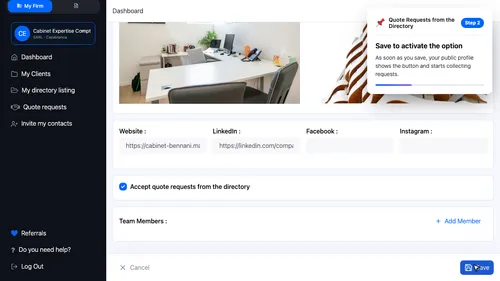
2 Save your profile Save to activate the option. As soon as you save, your public profile shows the button and starts collecting requests. ▾ ▶ 0:23
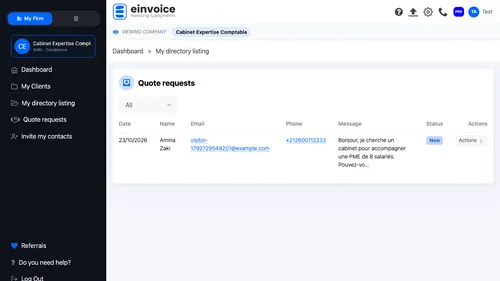
A request just came in. A visitor filled the form on your listing. The request appears here and is also sent to you by email.
3 Open incoming requests Open the "Quote requests" page. All requests from your listing are gathered here: name, email, phone and the visitor's message. ▾ ▶ 0:42
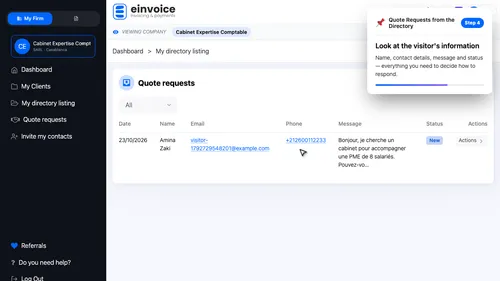
4 Read the request Look at the visitor's information. Name, contact details, message and status — everything you need to decide how to respond. ▾ ▶ 0:53
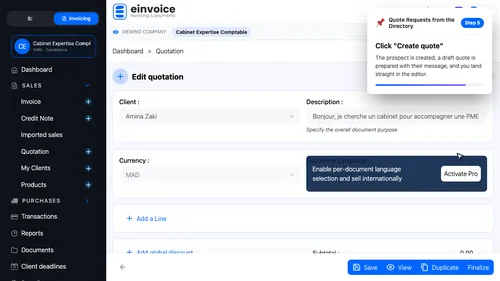
5 One-click quotation Click "Create quote". The prospect is created, a draft quote is prepared with their message, and you land straight in the editor. ▾ ▶ 1:04
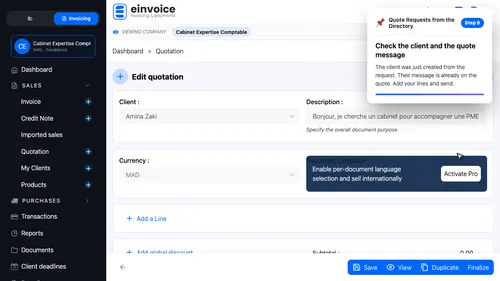
6 Your quote is ready Check the client and the quote message. The client was just created from the request. Their message is already on the quote. Add your lines and send. ▾ ▶ 1:12