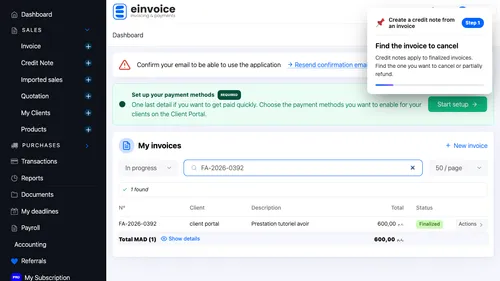
1 Invoice list Find the invoice to cancel. Credit notes apply to finalized invoices. Find the one you want to cancel or partially refund. ▾ ▶ 0:12
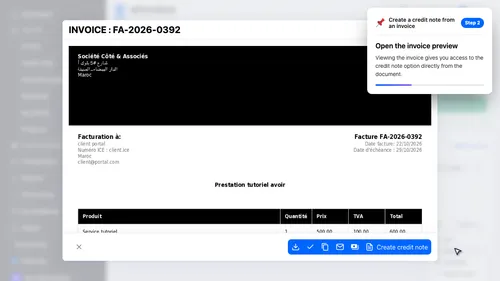
2 Open the invoice Open the invoice preview. Viewing the invoice gives you access to the credit note option directly from the document. ▾ ▶ 0:20
Create the credit note in one click. The 'Create credit note' button copies the client and lines from the invoice automatically. Nothing to re-enter.
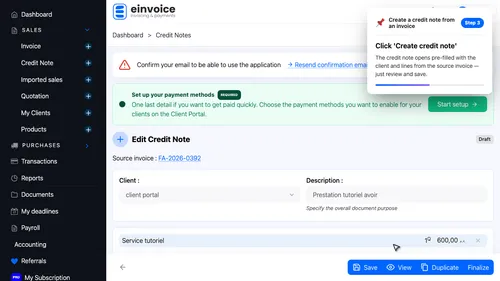
3 Create the credit note Click 'Create credit note'. The credit note opens pre-filled with the client and lines from the source invoice — just review and save. ▾ ▶ 0:37
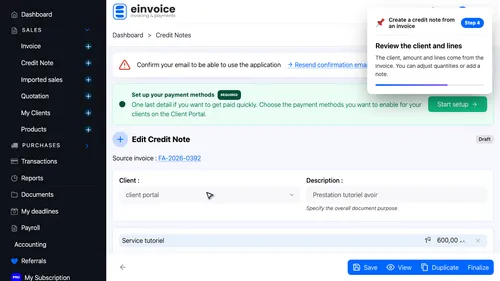
4 Pre-filled data Review the client and lines. The client, amount and lines come from the invoice. You can adjust quantities or add a note. ▾ ▶ 0:48
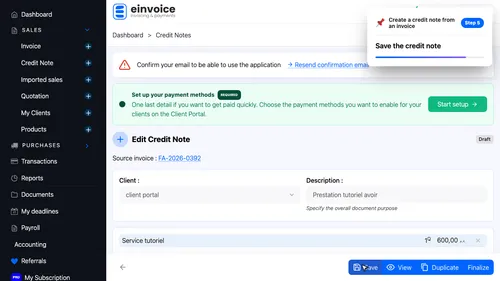
5 Save Save the credit note ▾ ▶ 0:56
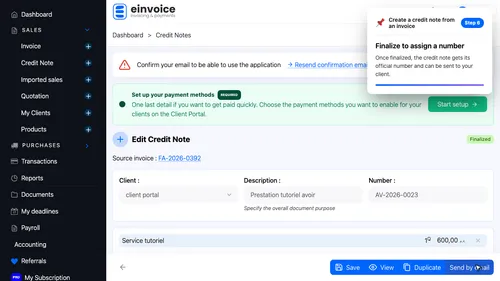
6 Finalize the credit note Finalize to assign a number. Once finalized, the credit note gets its official number and can be sent to your client. ▾ ▶ 0:59