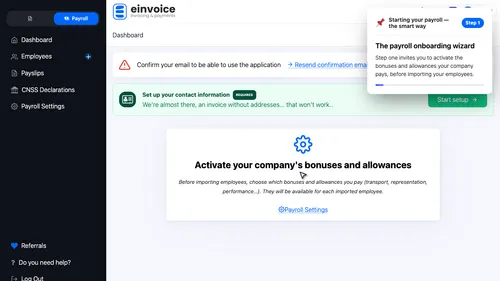
1 The onboarding wizard A two-step wizard replaces the blank screen. Step one: activate your company's bonuses and allowances so every payslip reflects what you actually pay. ▾ ▶ 0:08
Why activate bonuses first?. Activating them before the import means they are available for every employee from the first entry.
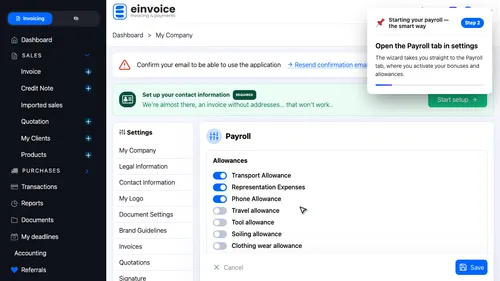
2 Go to settings Open the Payroll tab in settings. The wizard takes you straight to the Payroll tab, where you activate your bonuses and allowances. ▾ ▶ 0:28
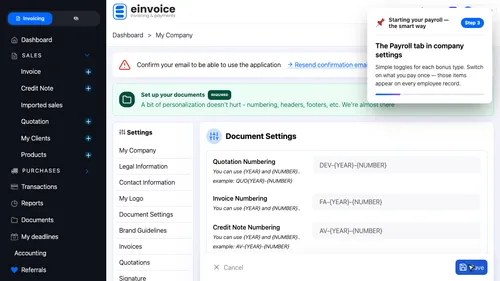
3 The Payroll tab in company settings The Payroll tab in company settings. Simple toggles for each bonus type. Switch on what you pay once — those items appear on every employee record. ▾ ▶ 0:36
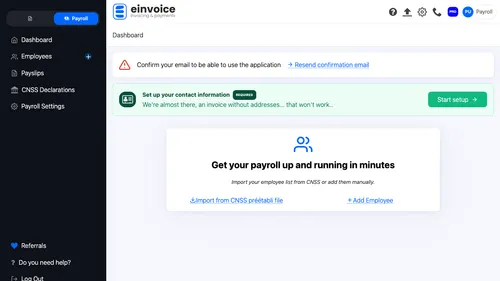
4 Step 2 is unlocked Back on the dashboard. Step 2 is unlocked. Time to bring your team in. ▾ ▶ 0:47
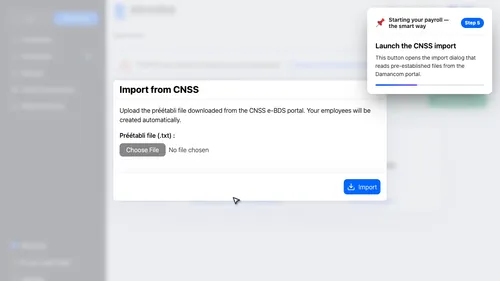
Every month, the CNSS publishes this file on the Damancom portal — it lists every registered affiliate. Import it here and your entire workforce is created in one go.
5 Open the import Launch the CNSS import. This button opens the import dialog that reads pre-established files from the Damancom portal. ▾ ▶ 1:04
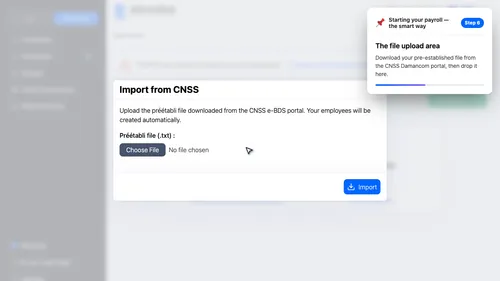
6 The pre-established file This area is waiting for your pre-established file — downloaded monthly from the Damancom portal, it holds all your registered affiliates ready to import. ▾ ▶ 1:12
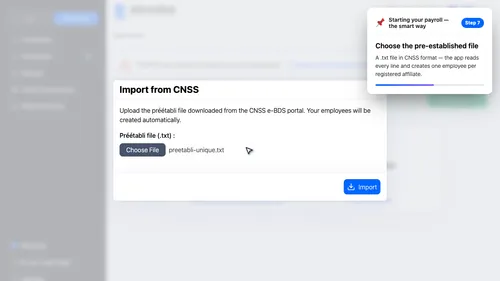
7 Select the file Choose the pre-established file. A .txt file in CNSS format — the app reads every line and creates one employee per registered affiliate. ▾ ▶ 1:22
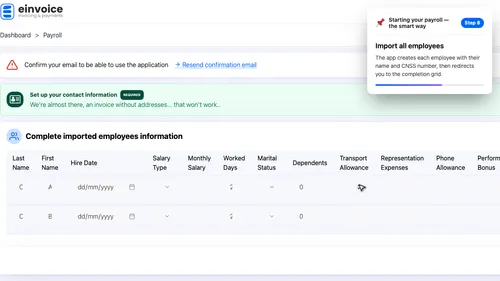
8 Run the import Submit the file. The app creates every employee on your list automatically, then takes you to a grid to complete their records. ▾ ▶ 1:34
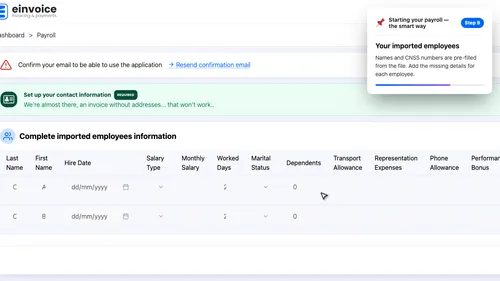
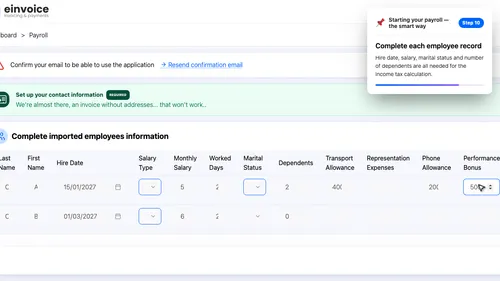
Complete the employee records. Imported employees have their name and CNSS number. You just need to add the hire date, salary type and amount — all in a single grid.
9 The completion grid Your imported employees. Names and CNSS numbers are pre-filled from the file. Add the missing details for each employee. ▾ ▶ 1:55
10 Dates, salaries and family situation Complete each employee record. Hire date, salary, marital status and number of dependents are all needed for the income tax calculation. ▾ ▶ 2:04
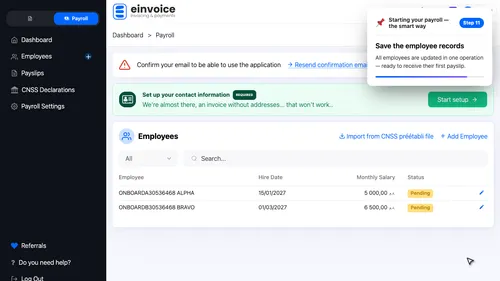
11 Save all Save the employee records. All employees are updated in one operation — ready to receive their first payslip. ▾ ▶ 2:28
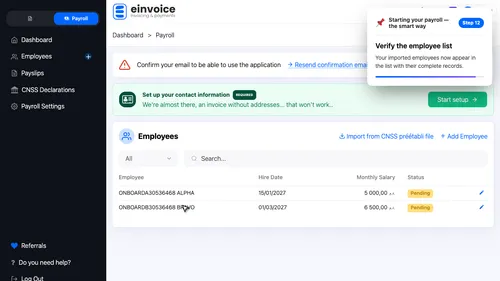
12 Employees ready Verify the employee list. Your imported employees now appear in the list with their complete records. ▾ ▶ 2:35
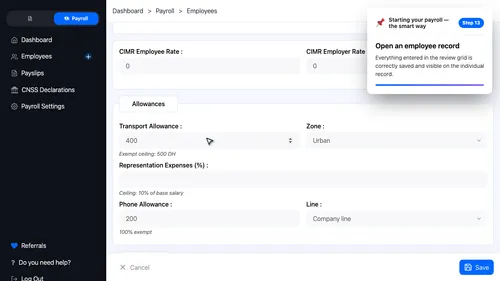
13 Family situation, allowances and bonuses saved Open an employee record. Everything entered in the review grid is correctly saved and visible on the individual record. ▾ ▶ 2:43