Banking & Reconciliation 1:53
Bank reconciliation from the transaction list Bank reconciliation from the transaction list. Click any transaction to open a side panel: linked documents, PDF preview, and reconciliation actions — without leaving the list.
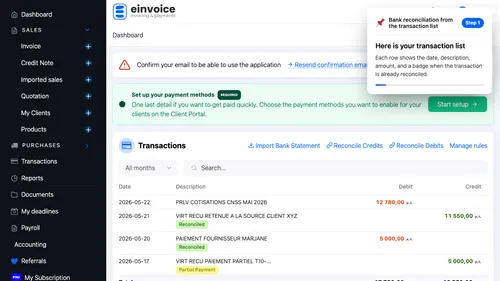
1 Transactions page Here is your transaction list. Each row shows the date, description, amount, and a badge when the transaction is already reconciled. ▾ ▶ 0:11
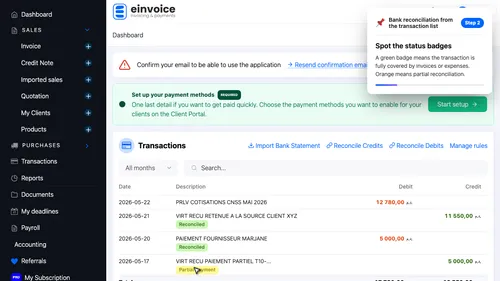
2 Reconciled badge Spot the status badges. A green badge means the transaction is fully covered by invoices or expenses. Orange means partial reconciliation. ▾ ▶ 0:20
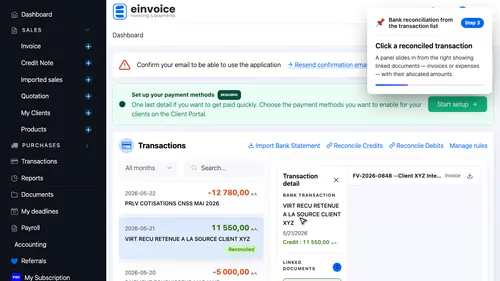
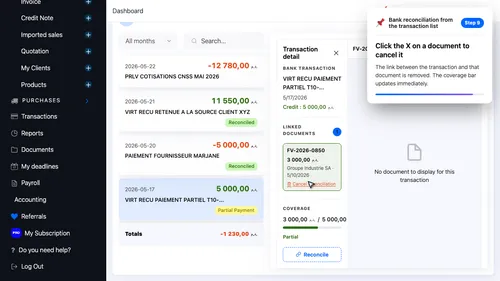
3 Open the detail panel Click a reconciled transaction. A panel slides in from the right showing linked documents — invoices or expenses — with their allocated amounts. ▾ ▶ 0:31
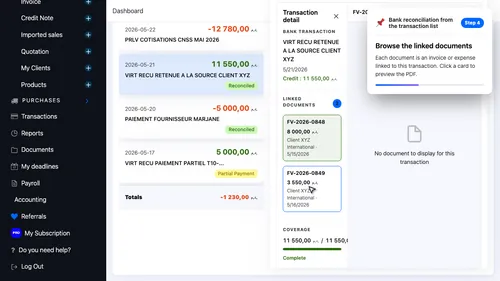
4 Reconciled documents Browse the linked documents. Each document is an invoice or expense linked to this transaction. Click a card to preview the PDF. ▾ ▶ 0:41
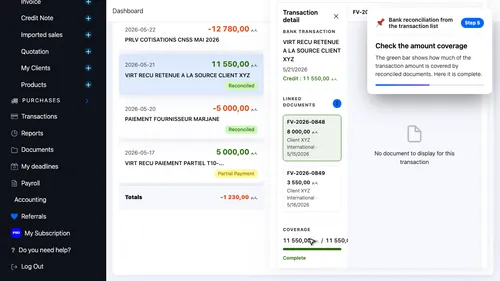
5 Coverage bar Check the amount coverage. The green bar shows how much of the transaction amount is covered by reconciled documents. Here it is complete. ▾ ▶ 0:51
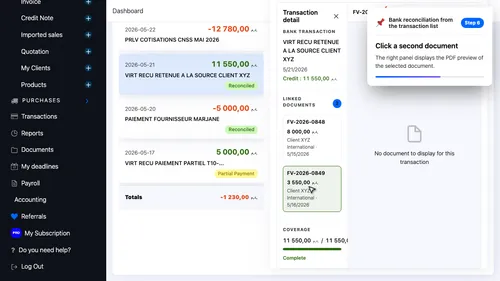
6 Preview a document Click a second document. The right panel displays the PDF preview of the selected document. ▾ ▶ 1:00
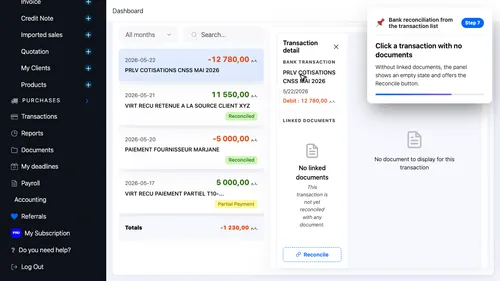
7 Unreconciled transaction Click a transaction with no documents. Without linked documents, the panel shows an empty state and offers the Reconcile button. ▾ ▶ 1:07
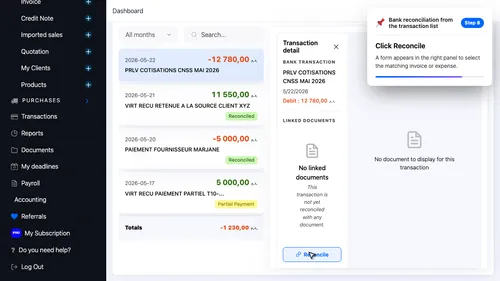
8 Start reconciliation Click Reconcile. A form appears in the right panel to select the matching invoice or expense. ▾ ▶ 1:17
9 Cancel a reconciliation Click the X on a document to cancel it. The link between the transaction and that document is removed. The coverage bar updates immediately. ▾ ▶ 1:24
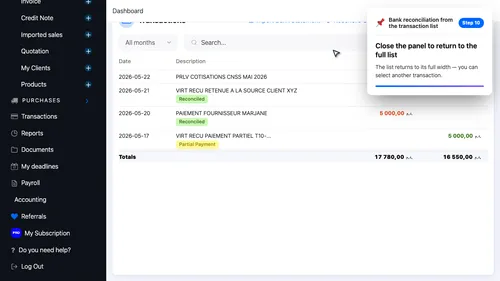
10 Close the panel Close the panel to return to the full list. The list returns to its full width — you can select another transaction. ▾ ▶ 1:34